- Part1 - Windows Server 2016 – Active Directory
- Part 2 - Windows Server 2016 – Active Directory – Temporary Group Memberships
As you know, the latest version of Windows Server - Windows Sever 2016 - is currently available. It is available in Azure as well as I mentioned
here. You can read “what is new with Windows Server 2016” in this Microsoft article
here. In general, Windows Server 2016 provides:
- Added layers of security - Enhance security and reduce risk with multiple layers of built-in protection.
- New deployment options - Increase availability and reduce resource usage with the lightweight Nano Server.
- Built-in containers - Develop and manage with agility thanks to Windows Server and Hyper-V containers.
- Cost-efficient storage - Build highly available, scalable software-defined storage and reduce costs.
- Innovative networking - Software-defined networking to automate with cloud-like efficiency.
I am not going to the details of Windows Server 2016 or it’s capabilities here. You can read all that information in the above mentioned
URL. My plan is to start a new blog series on Windows Server 2016 and Active Directory functionalities. To begin this, I will add a new Widows Sever 2016 to my existing Active Directory 2012 domain and promote the Widows Sever 2016 as an additional domain controller. The Domain Promotion process is very similar to the previous versions of windows.
There is an upgrade to Active Directory Schema. Shema can be upgraded during the domain promotion process. The new Schema or ObjectVersionNumber is 87. Some addition information is included here in
my TechNet wiki article. You can verify this by using ADSI Edit or
DSQuery or PowerShell commands.
Get-ADObject (Get-ADRootDSE).schemaNamingContext -Property objectVersion

dsquery * CN=Schema,CN=Configuration,DC=labanddemo,DC=com -scope base -attr objectVersion

As a reference, I have provided the following table that lists the Active Directory Schema and the corresponding Object Version:
| Active Directory | Object Version |
| Windows 2000 | 13 |
| Windows 2003 | 30 |
| Windows 2003 R2 | 31 |
| Windows 2008 | 44 |
| Windows 2008 R2 | 47 |
| Windows 8 Beta | 52 |
| Windows 2012 | 56 |
| Windows 2012 R2 | 69 |
| Windows Server 2016 | 87 |
***ObjectVersion 39 - Please refer
http://blogs.technet.com/b/askds/archive/2011/07/15/friday-mail-sack-peevish-nediquette-edition.aspx 
Anyway, we can start this journey with DC promotion process. The following section provides step-by-step instructions.
- Join computer to your exiting Active Directory Domain.
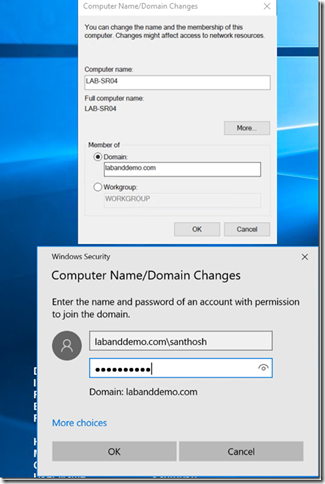
2. Click OK on the Welcome window and restart the server. After the reboot, this server will be member server in your existing Active Directory Domain. By default, this server will be in Computer Container.

3. Login to the server using a domain credentials (domain\username). You need to have proper permission to upgrade the schema and add an additional domain controller.

4. Next step is to add
ADDS server roles onto your new Windows Server 2016 server. Open
Server Manger and select
Add Roles and Features option.

5. Click
Next on the
Before you begin window.

6. Select
Role-based or Feature-based installation option. Click
Next.

7. On the
Select Destination Server window, select your local Windows Server 2016 server. Click
Next.
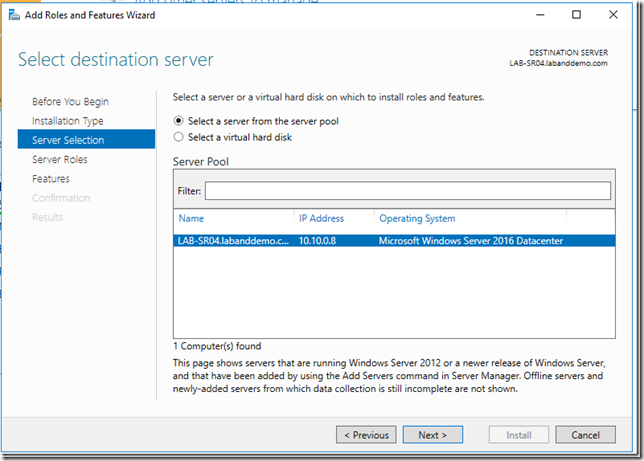
8. From
Server Roles option, select
Active Directory Domain Services. Accept the additional
Role Feature requirements. Click
Add Features.

9. Click Next on the
Select Features window.
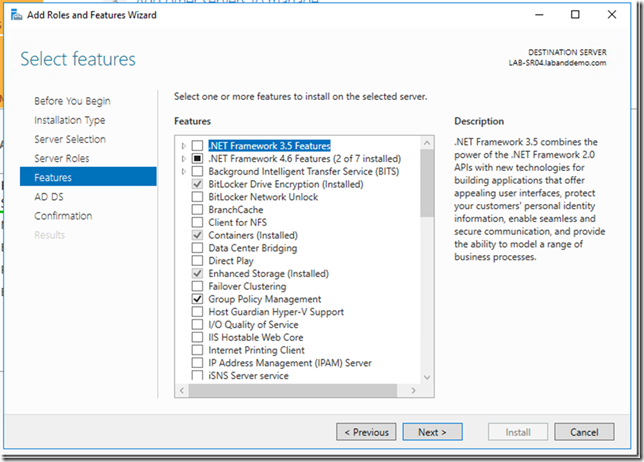
10. Click
Next on
Active Directory Domain Services window.

11. Select
Install option to begin AD DS role installation Process.

12. Now you have installed the AD DS role onto your new Windows Server 2016. Next step is to add an additional domain controller for your existing domain. As you can see on the following screenshot, you need to perform some cognition and post-deployment option to complete this task. Click
Close.
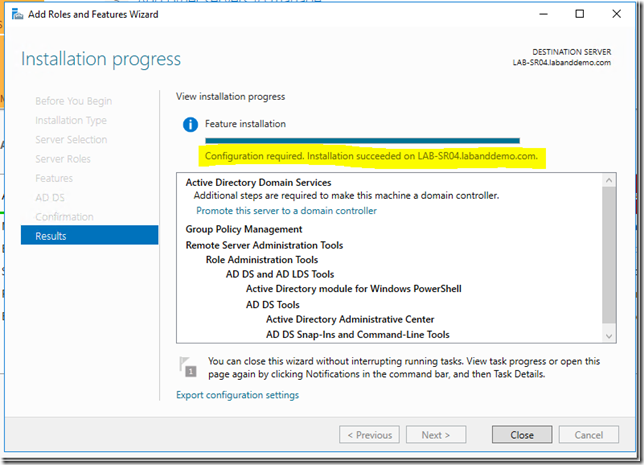
- From Server Manager, select Promote this server to a domain controller option. This will initiate the DCPROMO (Yes. I still like this word!) process.

14. As you can see on the following screenshot, you have 3 options:
1. Add a domain controller for an existing domain
2. Add a new domain to an existing forest
3. Add a new forest.
4. For this exercise, you will be selecting the first option - Add a domain controller for an existing domain
5. If you have only one domain and this new server is part of that domain, default domain name will be listed in the
Domain column.
6. Provide a domain credential with proper permission to perform these tasks. If the current/logged in user doesn’t have sufficient permission, you can select
Change option to enter a new credential.

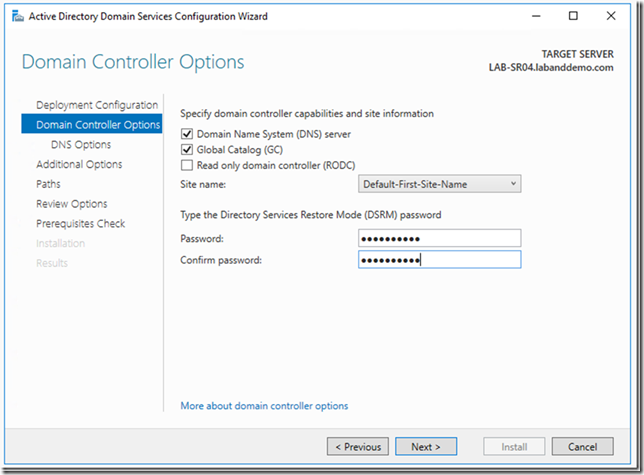
15. From the
Domain Controller Options window,
1. select the appropriate options for your environment. In my scenario, I will be selecting:
1. Domain Name System (DNS) server
2. Global Catalog (GC)
2. Provide a password for Directory Service Restore Mode (DSRM)
3. Click
Next.
16. Click
Next on the
DNS Options window.

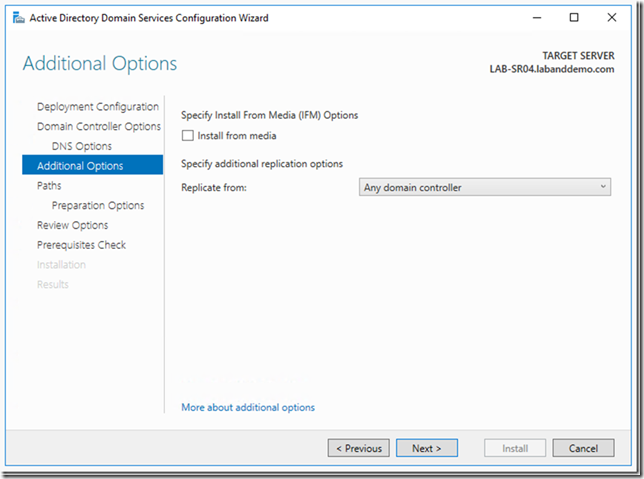
17. On the
Additional Options window, select appropriate AD data replication option. I will be selecting
Any Domain Controller option for this exercise. Click
Next.
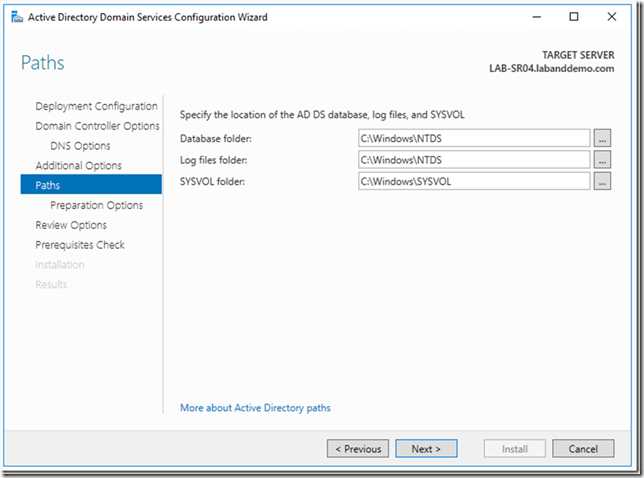
18. From
Paths window, select appropriate path for
AD Database and
Log file. Click
Next.
19. The next section will perform:
1.
Forest and Schema peroration for Windows Server 2016.
2.
Domain Preparation for Windows Server 2016.
3. Click
Next to continue.

- Click Next to continue and begin the Prerequisites Check.
- Verify the Prerequisites Check result. Click Next to start the Domain Controller promotion process.
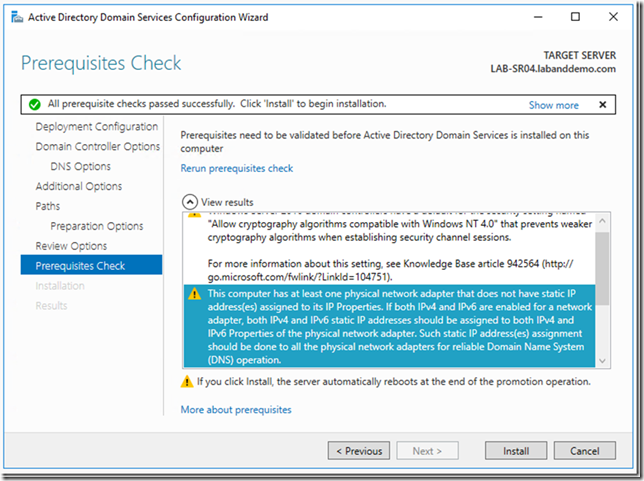
22. I have included the common Prerequisites warning information for your reference here.
Windows Server 2016 domain controllers have a default for the security setting named "Allow cryptography algorithms compatible with Windows NT 4.0" that prevents weaker cryptography algorithms when establishing security channel sessions.
For more information about this setting, see Knowledge Base article 942564 (http://go.microsoft.com/fwlink/?LinkId=104751).
This computer has at least one physical network adapter that does not have static IP address(es) assigned to its IP Properties. If both IPv4 and IPv6 are enabled for a network adapter, both IPv4 and IPv6 static IP addresses should be assigned to both IPv4 and IPv6 Properties of the physical network adapter. Such static IP address(es) assignment should be done to all the physical network adapters for reliable Domain Name System (DNS) operation.
A delegation for this DNS server cannot be created because the authoritative parent zone cannot be found or it does not run Windows DNS server. If you are integrating with an existing DNS infrastructure, you should manually create a delegation to this DNS server in the parent zone to ensure reliable name resolution from outside the domain "labanddemo.com". Otherwise, no action is required.
23. Reboot the server after completing the DCPROMO process. After the restart, the new Windows Server 2016 will be an additional domain controller in your existing domain. The Schema will be upgraded to Windows Server 2016.
I believe this is good for Part-1 of this blogs series. In Part-2, my plan to focus more on Active Directory related functionalities. Please post a comment here if you like to see an particular topic in this blog series.
- Part1 - Windows Server 2016 – Active Directory
- Part 2 - Windows Server 2016 – Active Directory – Temporary Group Memberships


 . I will cover the following authentication types in the Part-II of this blog:


