SS Technology Forum

SS Technology Forum

Computer Migration - Things to Consider

Here are a few points which you can consider while doing computer migration. These points are applicable to all migrations irrespective of the migration tool (ADMT, NetIQ, Quest etc)

Active Directory User Migration

Here is a graphical representation of the high level steps involved in an Active Directory migration using ADMT

User Migration and Merging Using Quest Migration Manager

Pre-creating user account in the target domain is a common scenario these days due to single-sign-on solution, HR management procedure etc

Microsoft Right Management Service (RMS)

Rights Management Service (RMS) is an add-on to many RMS aware applications. In this article my main focus is to explain how we can utilize RMS technology with Exchange 2003 and how we can take advantage of RMS technology to increase the email security

Microsoft ISA Server

I am sure we have all either encountered or heard of this "problem" one time or another if the ISA Server is part of the Active Directory Domain. Is it a problem?

Showing posts sorted by relevance for query script. Sort by date Show all posts

Monday, August 16, 2010

AD Group Report - List Group Members in Active Directory–PowerShell Script

Updated Script - http://portal.sivarajan.com/2011/10/search-ad-collect-local-admin-group.html

Script #1

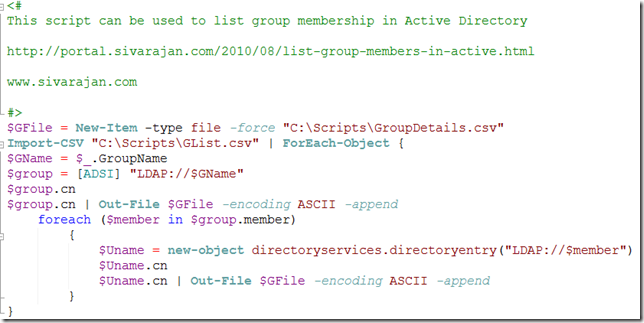
This script can be used to list group membership in Active Directory. Input – Group DN
image

As you can see on the following screenshot, this script uses an input file called Glist.csv which contains all group names.

image

You will see the output on the screen as well as in the GroupDetails.csv file.

image

You can download the script from the following locations.  Rename the file to .PS1

http://www.sivarajan.com/scripts/Group_Members.txt

http://gallery.technet.microsoft.com/scriptcenter/dcc9432e-d541-4be2-a39c-637c8d4c9fd0


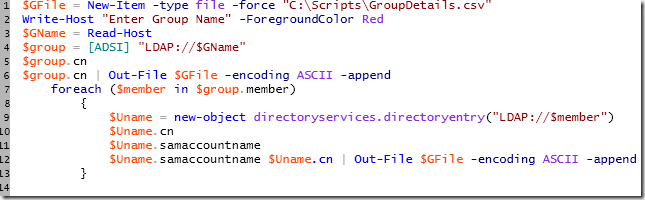
Script #2

Modified Script – This script will prompt you for the Group distinguishedName (DN). 
image


Script #3

$OutPutFile = New-Item -type file -force "D:\Scripts\GroupDetails.csv"

#update filter based on your requirement

# 2 Global distribution group

# 4 Domain local distribution group

# 8 Universal distribution group

# -2147483646 Global security group

# -2147483644 Domain local security group

# -2147483640 Universal security group

$ObjFilter = "(&(objectCategory=Group)(|(groupType=2)(groupType=4)(groupType=8)))"

$objSearch = New-Object System.DirectoryServices.DirectorySearcher

$objSearch.SearchRoot = "LDAP://OU=DLs,DC=Sivarajan,DC=com"

$objSearch.PageSize  = 10000

$objSearch.Filter = $ObjFilter

$Results = $objSearch.FindAll()

foreach ($Result in $Results){

    $Item = $Result.Properties

    Write-host $Item.cn

$Item.cn | Out-File $OutPutFile -encoding ASCII -append

    foreach ($Member in $Item.member) {

               Write-host "$Member"

$Member | Out-File $OutPutFile -encoding ASCII -append

    }

}


Script #4
 

Nested Group Report - This script will search AD for all security groups and generate a nested group  details. Output will contain only Groups.

image

Script

Clear
$AllGroupNames = Get-ADGroup -Filter {(GroupCategory -eq 'security')} #-SearchBase 'DC=domain1,DC=com'
#Gnames - contins all Security group details
    foreach ($GNamet in $AllGroupNames)
    {
    Write-Host "Parent Group Name -" $GNamet.Name, $GNamet.GroupScope
    #GNamet contins all Group properties
    $Gname = $GNamet.Name
    #$Gname contians only group names
    $AllGmembers = Get-ADGroupMember -identity $Gname
    #$AllGmembers - memeber details from each security group
        foreach ($GMemebr in $AllGmembers) #Loop for verifying each member type
            {
                If ($GMemebr.objectClass -eq "Group") #verifying each member type. 
                {
                    $ChildGroupProp = Get-ADGroup -Identity $GMemebr
                    Write-Host "Child Group Member(s)-" $GMemebr.name, $ChildGroupProp.GroupScope -ForegroundColor Green
                }
            }

    }


Output

Output will contain parent and child group and group type.

image


Monday, November 4, 2013

Caesar Cipher Encryption – PowerShell Scripts

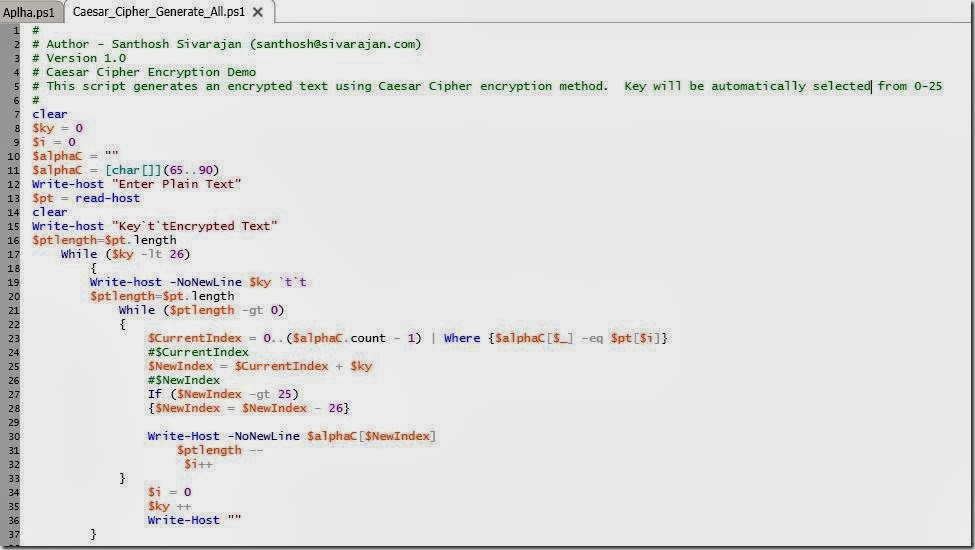
While studying the Caesar Cipher encryption, I came up with this idea of creating a script using PowerShell V1.0.  I have created two PowerShell scripts. First script will generate an encrypted message based on an automatically selected key 0 - 25.  The second script will prompt you to enter a plain text and key.  Enjoy!


Script #1 - This script will generate an encrypted message based on your input - plain text.

As shown in the following screenshot, it will ask you to enter a plain text. 

clip_image0021[1]


You don’t need to specify a key.  The script will automatically select a key from 0 to 25.   Output will have the Key and Encrypted text as shown in the following screenshot:

clip_image002[7]

You can download the script from the following location: 

clip_image002

Here is another example of the output.  In this example the plain text was a-z (Key 0)

clip_image002[9]


Script #2 - This script will generate an encrypted message based on your input - plain text and key. 

Unlike the script #1, it will ask you for both plain text and the key.

clip_image002[1]

clip_image002[11]

Output will have Key, Pain text and the Encrypted text. 

clip_image002[7]

This script can be downloaded from the following location:

clip_image002[9]


Download:

Script #1 - https://skydrive.live.com/?mkt=en-US&ppud=4#cid=FD1B4F30721044E5&id=FD1B4F30721044E5%21117

Script #2 - https://skydrive.live.com/?mkt=en-US&ppud=4#cid=FD1B4F30721044E5&id=FD1B4F30721044E5%21118


Sunday, April 3, 2011

List Local Administrator Group Members on a Server – PowerShell Script

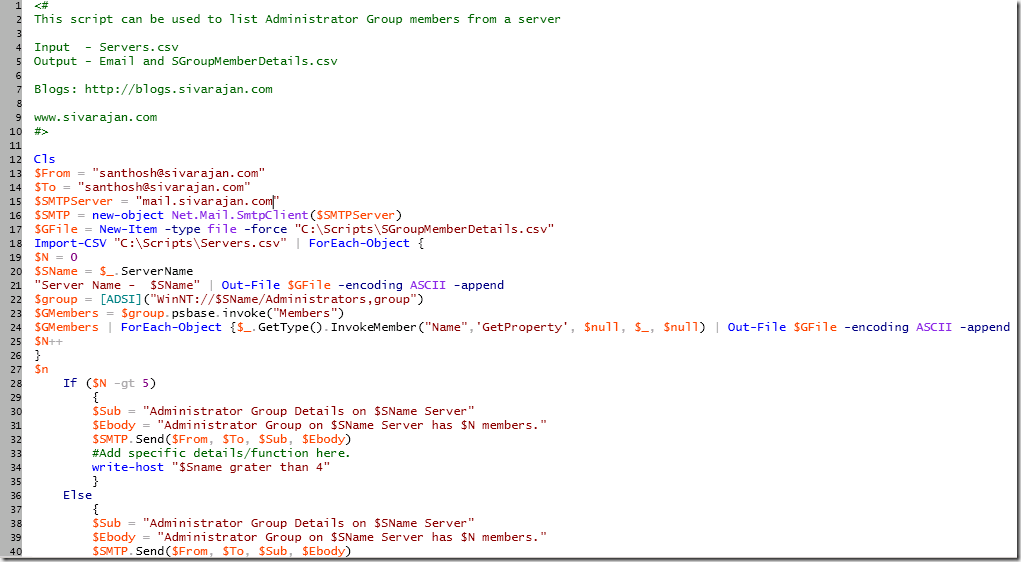
I have updated one of my PowerShell Script  - List Group Members in Active Directory–PowerShell Script – to generate a report and send an email based on number of members in an Administrator group on a server.  I crated this script based on a question posted on the TechNet forum. 

Input – This script reads server names from an input file called Serves.csv

image

Output - It creates an output file called SGroupMemberDetails.csv which contains all server and group information. It also generate an email alert based on number of group members.  You can set this threshold value using $N variable.  

image

Here are the script details

image

Download – You can download the script from www.sivarajan.com.  I have uploaded on this TechNet Script library also. 

Updated script - http://portal.sivarajan.com/2011/10/search-ad-collect-local-admin-group.html

Tuesday, May 31, 2011

Modify Log On To (userWorkstations) User Properties–PowerShell Script

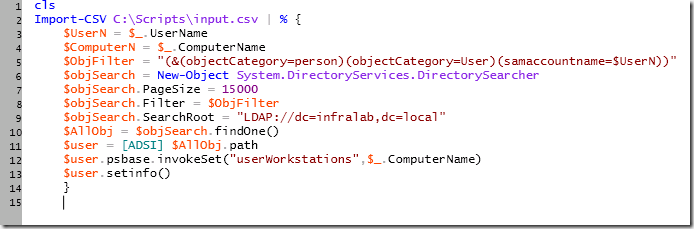
This PowerShell script can be used to update or modify the Log On To (userWorkstations) attribute in Active Directory. 

Input – Input.csv.  This file contains user name and workstation information in the following format:

image

Script:

image

Download:  This script can be downloaded from the following locations. 

www.sivarajan.com

TechNet Gallery

Updated Script 07/24/2011The updated script supports multiple values and it won’t overwrite the existing value. 

image

Output

image

You can download the updated script from - http://www.sivarajan.com/scripts/LogOnTo(userWorkstations)-Updated.txt


More scripts - http://portal.sivarajan.com/search?q=script+powershell&max-results=20

Monday, March 26, 2018

Update Group Membership – PowerShell Script


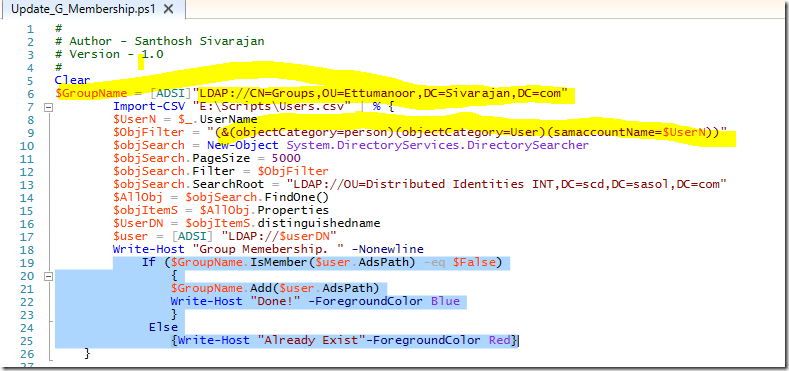
If you have multiple domains or performing a user or group migration, you may need to manually update (depend on your scenario) the source or target group membership.  This script can be used to update group membership based on source user’s group membership.  The input for this script the user name (sAMAccountName) and it assumes that the source and target sAMAccountName are the same. 
Input file (Users.csv) Format:


Script validates users in the source domain and collect “memberof” details and then add the target user (migrated user) to the same group. At the end of the operation, the source user and the target user (migrated user) will be part of same security group in the source domain. 
You can see some other “Update Group Membership” script here - http://portal.sivarajan.com/2014/01/update-group-membershippowershell-script.html
Script:
#
# Update Group Membership
# Santhosh Sivarajan (Santhosh@Sivarajan.Com)
#
Clear
Import-Module ActiveDirectory
$userN = ""
$GroupDetails = ""
$Group = ""
$GroupsDN = ""
$uValidation = ""
$tagetDomain = "labanddemo.com"
$Cdate = (Get-Date).tostring("dd-MM-yyyy-hh-mm-ss")


        $SGBeforeUpdateFile = New-Item -type file -force "C:\Temp\Groups_Before_$Cdate.csv"
        $SGAfterUpdateFile = New-Item -type file -force "C:\Temp\Groups_After_$Cdate.csv"
        Import-CSV "C:\Temp\Users.csv" | % {
        $userN = $_.userName
        $sourceDomain = $_.Domain

               
                   $uValidation = Get-ADUser -filter {sAMAccountName -eq $userN} -Server $tagetDomain
                  
                       If($uValidation -eq $Null)
                        {
                           Write-Host "User $userN Doesn't Exist in $tagetDomain Domain"
                           $errorFile = New-Item -type file -force "C:\Temp\Error_$Cdate.csv"
                           "User $userN Doesn't Exist in $tagetDomain Domain"| Out-File $errorFile -encoding ASCII -append
                        }
                        Else
                        {
                           $userN | Out-File $SGBeforeUpdateFile -encoding ASCII -append
                           $GroupDetails = get-aduser -Server $sourceDomain -identity $userN -Properties memberof
                           $GroupsDN = $GroupDetails.memberof
                           $GroupsDN | Out-File $SGBeforeUpdateFile -encoding ASCII -append
                           foreach ($Group in $GroupsDN)
                              {
                               $MigrateduserN = Get-ADUser $userN -Server $tagetDomain -Properties DistinguishedName
                               Write-host "Adding User -> $MigrateduserN"
                               Write-host "To Group -> $Group"
                               Add-ADGroupmember -Server $sourceDomain -Identity $Group -Members $MigrateduserN
                               $members = Get-ADGroupmember -Server $sourceDomain -Identity $Group
                               $GroupName = Get-ADGroup -Server $sourceDomain $Group
                               $GroupName.Name | Out-File $SGAfterUpdateFile -encoding ASCII -append
                               $members.distinguishedName | Out-File $SGAfterUpdateFile -encoding ASCII -append
                               Write-host "....Done!" -ForegroundColor Green
                               Write-host ""
                               }
                        }

        }

Download:
You can also download the script from the following locations:

  1. OneDrive
  2. TechNet Gallery 


Monday, July 11, 2011

Search AD and Add Employee ID–PowerShell Script

Script #1

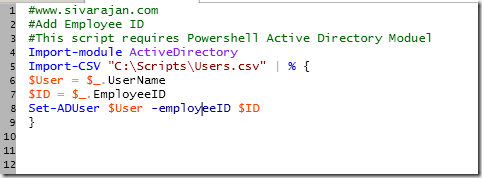
Here is a simple PowerShell script which you can use to add Employee ID in a user object. This script requires PowerShell Active Directory module.

Note: I am not searching AD for the user account.  My assumption is the user account already exist in AD. 

image

Input file – Input file (Users.csv) contains user names and employeeID in the following format:

image

You can download this script from the following locations:

www.sivarajan.com - http://www.sivarajan.com/scripts/Add_EMpID.txt

Microsoft TechNet Gallery - http://gallery.technet.microsoft.com/scriptcenter/e9bafc1a-b5b1-4663-8e25-b0d0ea28c2b2

Script #2 -  Search AD using email address and update the employee ID value.

image

Input file (users.csv) contains email address and employee ID in the following format:

image

Download - http://www.sivarajan.com/scripts/Search_AD_EmployeeID.txt

Microsoft TechNet Gallery - http://gallery.technet.microsoft.com/scriptcenter/87a2a2f3-f590-4bdf-911b-da4df53f1f11


More scripts - http://portal.sivarajan.com/search?q=script+powershell&max-results=20


Wednesday, January 2, 2013

Search Active Directory and Generate Distribution List Membership Details–PowerShell Script

Update 3/10/2013:  Updated with Distribution List sAMAccoutType values 268435457 and 536870913. 

Similar Script - http://portal.sivarajan.com/2010/08/list-group-members-in-active.html

Group

sAMAccountType

Universal (DL)

268435457

Universal (Security)

268435456

Global (DL)

268435457

Global (Security)

268435456

Domain Local (DL)

536870913

Domain Local (Security)

536870912

This PowerShell V 1.0 script can be used to generate Distribution List membership details using distinguishedName of the user as an input.   It searches Active Directory for user group membership (memberof) first, then verifies the Group type using sAMAccoutType value.  The sAMAccoutType value for Distribution List are 268435457 and 536870913 .  You can change this value to 268435456 for Security Groups. 

I have used the same logic in one of my previous scripts - List Group Members in Active Directory–PowerShell Script.  However, in this script, the challenge was to use User information as the input. 

Script

image


Output – As shown in the screenshot, you will see the output in the console itself in the following format:

image

Input file – Ulist.csv - Contains user  distinguishedName.  This file must have a header called UserDN.   

image

Output file – DLs.csv – The output file contains user sAMAccoutType  and DL’s distinguishedName in the following format:

image

Download – You can download this script from the following locations:

  1. www.sivarajan.com
  2. TechNet Gallery

Code:

# www.sivarajan.com
# Author - Santhosh Sivarajan
#
Clear
$DLValue1 = "268435457"
$DLValue2 = "536870913"
$DL_Output = New-Item -type file -force "C:\Scripts\DL_WAX_Output_0311.csv"
Import-CSV "C:\Scripts\DN_Input.csv" | ForEach-Object {
$UDN = $_.UserDN
$FName = [ADSI] "LDAP://$UDN"
$Usam = $FName.samaccountname
Write-host "Searching AD User Account -> $Usam"
$FName.samaccountname | Out-File $DL_Output -encoding ASCII -append
    foreach ($member in $FName.memberof)
        {
            $Gname = new-object directoryservices.directoryentry("LDAP://$member")
            $Gtype = $Gname.sAMAccountType
                If($Gtype -eq $DLValue1)
                    {
                    $GDN = $Gname.distinguishedName
                    Write-host "`tMember of $GDN Distribution Group" -foregroundcolor Green
                    $Gname.distinguishedName | Out-File $DL_Output -encoding ASCII -append
                    }
        elseif ($Gtype -eq $DLValue2)
            {
            $GDN = $Gname.distinguishedName
                        Write-host "`tMember of $GDN Distribution Group" -foregroundcolor Green
                        $Gname.distinguishedName | Out-File $DL_Output -encoding ASCII -append
                        }
        }
        Write-host ""
}


___________________________________________________________________________________________

Migrating from Windows Server 2008 or Windows Server 2008 R2 to Windows Sever 2012?

Paperback - http://www.amazon.com/dp/1849687447/?tag=packtpubli-20

eBook - http://www.packtpub.com/migrating-from-2008-and-2008-r2-to-windows-server-2012/book

___________________________________________________________________________________________

Monday, January 27, 2014

Update Group Membership–PowerShell Script

PowerShell Script – Add users to a group or Update group membership in Active Directory

Here is a PowerShell V1.0 script to update group membership or add users to a group in Active Directory.  You can get a I have another script which uses PowerShell V2.0 and Active Directory PowerShell module to update the group membership.  You can read more details here -   Add Users to a Group–PowerShell Script - http://portal.sivarajan.com/2011/07/add-users-to-grouppowershell-script.html

Script:

image

Input File – Input file contains user samaccountname in the following format:

[image%255B3%255D.png]

Friday, March 23, 2018

Group Membership Report – PowerShell Script

Another “Group Membership Report” script.  You can see some of the previous versions here - http://portal.sivarajan.com/2010/08/list-group-members-in-active.html.

This script provides the group membership details based on user name.  You can include all user names in an input file (Users.csv) in the following format:


Script uses Get-ADUser cmdlet to validate the user first then get the user membership using the “memberof” properties.  Output/report will be in the GMReport_$Cdate.csv file.  Error message will be captured in Error_$Cdate.csv file.

Script:
#
#Group Membership Report – PowerShell Script
#Santhosh Sivarajan (santhosh@sivarajan.com)
#
Clear
Import-Module ActiveDirectory
$userN = ""
$GroupDetails = ""
$Group = ""
$GroupsDN = ""
$uValidation = ""
$Cdate = (Get-Date).tostring("dd-MM-yyyy-hh-mm-ss")

    $Report = New-Item -type file -force "C:\Temp\GMReport_$Cdate.csv"
    Import-CSV "C:\Temp\Users.csv" | % {
    $userN = $_.userName
    $sourceDomain = $_.Domain
    $uValidation = Get-ADUser -filter {sAMAccountName -eq $userN} -Server $sourceDomain
   
        If($uValidation -eq $Null)
             {
              Write-Host "User $userN Doesn't Exist in $sourceDomain Domain"
              $errorFile = New-Item -type file -force "C:\Temp\Error_$Cdate.csv"
              "User $userN Doesn't Exist in $sourceDomain Domain"| Out-File $errorFile -encoding ASCII -append
             }
         Else
             {
               
                $userN | Out-File $SGBeforeUpdateFile -encoding ASCII -append
                $GroupDetails = get-aduser -Server $sourceDomain -identity $userN -Properties memberof
                $GroupsDN = $GroupDetails.memberof
                $GroupsDN | Out-File $SGBeforeUpdateFile -encoding ASCII -append
            }
    }

Download:
You can also download the script from the following locations:
  1. OneDrive
  2. TechNet Gallery 

Saturday, July 17, 2010

User Profile and Operating System (OS) Info – PowerShell Script

This script can be used to generate user profile and Operating System (OS) information from an input file (input.csv) which contains computer names.  This script generates 2 output files.  UserInfo.csv – which contains Computer Name, Profile Name, Last Access Time, OS version and Service Pack information. 

FailedCompuers.csv – Script verifies admin$ access. If the access fails, it will be added to the FailedComptuers.csv file.  This script also displays the output on the screen.

image

Console Output

image

Output File – UserInfo.CSV

image

Sample Input.CSV file

image

You can download the script from the following location:

UserProfile_OS_Info.PS1

Thursday, January 23, 2014

Update ProfilePath in Active Directory – PowerShell Script

Here is a PowerShell V1.0 script which you can use to clear or update the Profile Path (ProfilePath) value in Active Directory user account.

The current script is going to clear (delete) the existing value from Profilepath attribute.  I am using the PutEx ADSI method (  <Object>.PutEx <controlcode>, <attribute name>, <value(s)> ) to clear the existing value. 

$user.PutEx(1, "ProfilePath", 0)
$user.setinfo()

You can see more information about this method on KB article -  http://support.microsoft.com/kb/260251.  

Script:


image


You can modify the above section to update Profile Path with a different value. here are the supported control codes:

Const ADS_PROPERTY_CLEAR = 1
Const ADS_PROPERTY_UPDATE = 2
Const ADS_PROPERTY_APPEND = 3
Const ADS_PROPERTY_DELETE = 4

Or you can use a method I mentioned in this script - Configure Terminal Server User Profile – PowerShell Script - http://portal.sivarajan.com/2011/03/configure-terminal-server-user-profile.html

The input file (Users.CSV) contains user samAccountName as shown in the following screenshot:

image

Output file – Log file (User_Output_MM-dd-yyyy_hh-mm-ss.csv) will have user and old profilepath value.

Wednesday, January 11, 2012

Top 10 Scripts in Microsoft Script Repository

Microsoft Scripting Guy has announced the top 10 scripts in the Microsoft Script Gallery.  My script - List Group Members in Active Directory has ranked #8 on the list..Woo hoo Smile

At number eight, we have the List Group Members in Active Directory script written by Microsoft Directory Services MVP, Santhosh Sivarajan. This excellent script had a great following in 2011.
Santhosh's blog:
Santhosh Sivarajan's Blog

You can read the complete reports on the following website:

http://blogs.technet.com/b/heyscriptingguy/archive/2012/01/02/find-the-top-ten-scripts-submitted-to-the-script-repository.aspx?utm_source=twitterfeed&utm_medium=twitter

Friday, June 3, 2011

Modify HOSTS File Remotely–PowerShell Script

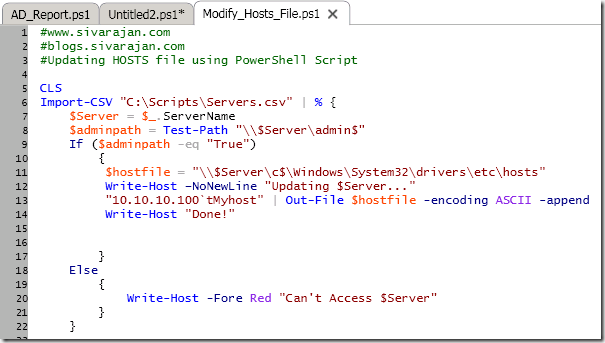
You can use this PowerShell script to update a HOSTS file remotely.  This procedure can be used to modify any files remotely.

Input File: Servers.csv – This file contains server name or IP address.

image

Script

image

Output – You will see the status update on the screen as displayed in the following screenshot:

image

Download – This script can be downloaded from the following locations:

www.sivarajan.com

TechNet Script Gallery

Tuesday, July 26, 2011

Change Service Account Username & Password–PowerShell Script

This PowerShell script can be used to change the service account credentials remotely. 

Input – The input file (input.csv) contains server/computer name in the following format: 

image

Script

image

Output – You will see the status on the screen as shown in the following screenshot:

image

Download – You can download this script from the following locations:

  1. www.sivarajan.com - http://www.sivarajan.com/scripts/Change_Service_Credentials.txt
  2. Microsoft TechNet Gallery - http://gallery.technet.microsoft.com/scriptcenter/79644be9-b5e1-4d9e-9cb5-eab1ad866eaf

More Scripts - http://portal.sivarajan.com/search?q=script+powershell&max-results=20


Thursday, July 21, 2011

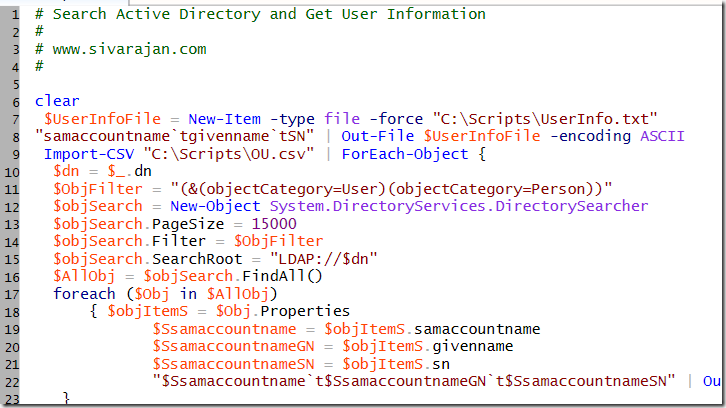
Search Active Directory & Get User Properties–PowerShell Script

You can use this PowerShell script to search Active Directory and get the user properties.  The input file (OU.csv) contains OU name sin the following format:

image

Script:

image

Download:

You can download the script from the following locations:

www.sivarajan.com - http://www.sivarajan.com/scripts/SearchAD_UserInfo.txt

Microsoft TechNet Gallery - http://gallery.technet.microsoft.com/scriptcenter/dd152aa5-bc94-4ac8-9eeb-3bc5b98d425a

More scripts - http://portal.sivarajan.com/search?q=script+powershell&max-results=20

Wednesday, July 14, 2010

Last Logged-On User / DefaultUserName – PowerShell Script

This script generates Last Logged-On User / DefaultUserName information from an input file (input.csv) which contains computer names.

image

Input file (input.csv) contains all computer names.  “ComputerName” header is a requirement. 

image

Output file

UserInfo.csv – contains computer names and corresponding SamAccountNames

image

FailedCompuers.csv – Script verifies admin$ access. If the access fails, it will be added to the FailedComptuers.csv file.

This script also displays the output on the screen.

image

You can download the script from the following location:

Last Logged-On User.PS1

Popular Posts

Share

Twitter Delicious Facebook Digg Stumbleupon Favorites More